A SharePoint alternative built for engineering drawings.
For the document controllers and engineering teams who keep the drawing record. Put every DWG, DGN, and RVT under revision control, search the text printed inside scanned sheets, and open any drawing in the browser. Keep SharePoint for general documents.
10M+ documents under management · Hosted in Australia and the US · SAML · Full audit trail
SharePoint is good software, for the job it was built for.
SharePoint runs Office documents, policies, and general collaboration well, and plenty of teams should keep it for that. The claim here is narrow. SharePoint was not built for engineering drawings, and a drawing set needs things a document library does not provide.
Lunr is built for the drawing record. It holds the controlled set while SharePoint keeps the general documents, so you add a register without giving anything up.
Read why teams move CAD drawings off shared storage- Office documents, co-authored in Word, Excel, and PowerPoint.
- Policies, records, and meeting notes for the wider organisation.
- Intranet pages and general team collaboration.
- Permissions and records retention across departments.
Where a drawing set hits the edge of a document library.
These are the specific points where SharePoint stops matching what an engineering drawing record needs. Each one is a job a drawing set requires and a document library was never meant to do.
SharePoint and Lunr, capability by capability.
A factual read of what each tool does for a drawing record. The two are not rivals for every row. SharePoint holds the general documents, and Lunr holds the controlled drawing set.
| Capability | On SharePoint | On Lunr |
|---|---|---|
| Store and co-author Office documents | Yes, its core strength | Yes, through the OneDrive connector |
| Version a single file | Yes, file version history | Yes, on every document |
| Drawing register showing the current revision of a set | No | Yes, a controlled register per set |
| Open DWG, DGN, and RVT in the browser | No, needs the CAD application | Yes, in the Rift and Foundry viewers, no CAD licence |
| Full-text search inside scanned drawings | No, reads Office text and file names | Yes, XRAY OCR reads the text on the sheet |
| Title-block metadata read into fields | No | Yes, parsed on import |
| Transmittals and handover validation | No | Yes, tracked transmittals and manifest validation |
| Audit trail on a controlled drawing | File version history only | Full audit trail on every controlled drawing |
A register over the set, not a version log on one file.
Book a drawing in and Lunr numbers it, keeps its full revision history, and marks the previous revision as superseded. The title-block fields come across as searchable metadata, so drawing number, revision, and discipline are things you filter on, not text buried in a file name.
- A controlled register per set, showing the current revision and status of every sheet at a glance.
- Automatic document and version numbering, applied in your register format as drawings are booked in.
- Superseded revisions kept and marked, never deleted and never mistaken for the current sheet.
- Title-block tags read into metadata, so the drawing number, revision, and discipline become filters.
controlled register · automatic numbering · superseded marking · title-block metadata
See document control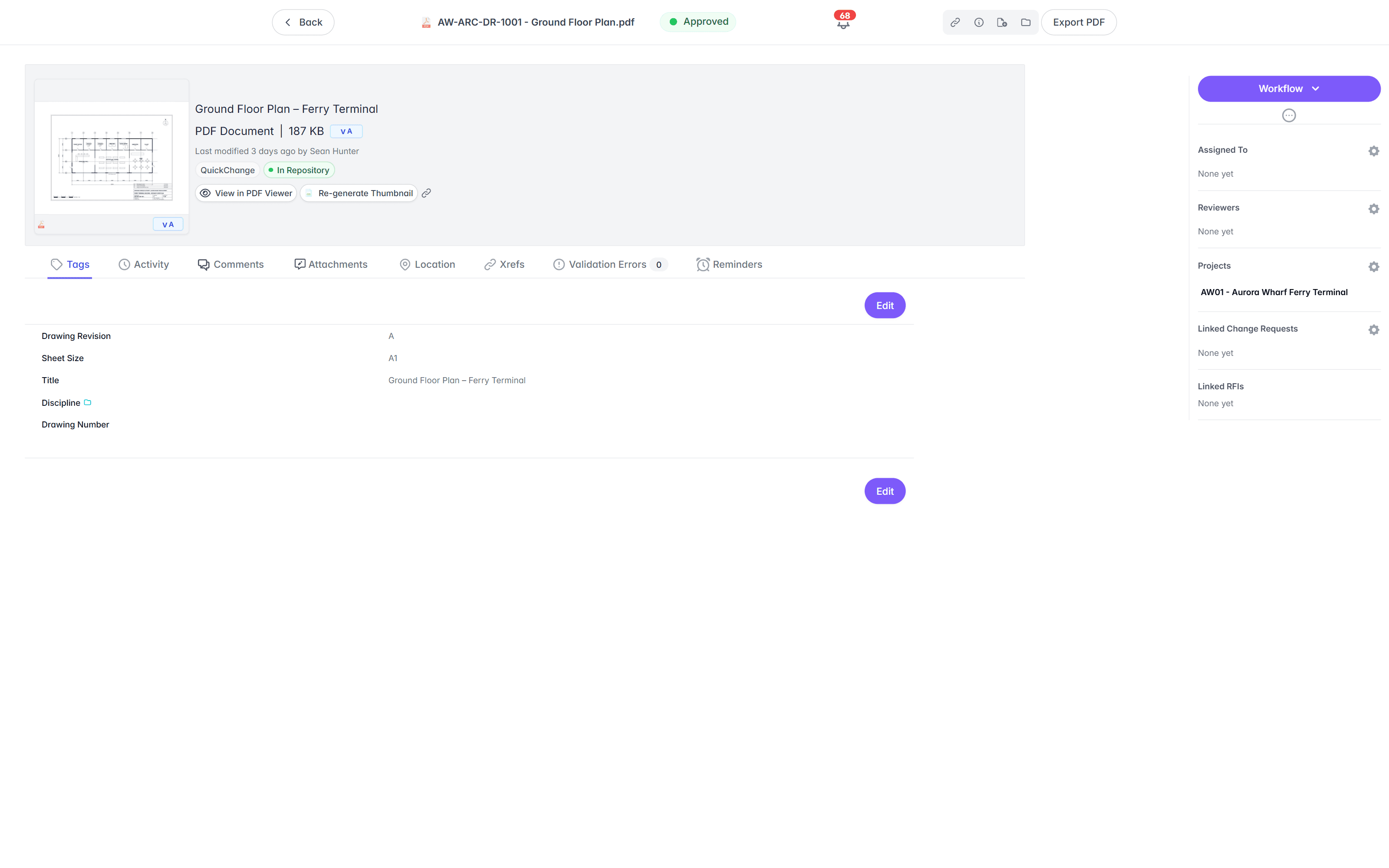
Open a DWG, DGN, or RVT in the browser, no CAD licence.
On SharePoint, opening a CAD drawing means the authoring application and a licence, so most of the team cannot see the sheet. In Lunr the Rift viewer renders DWG, DGN, and PDF at full fidelity, with layers, measurement, and markup. Models open in Foundry, point clouds in Nimbus.
- View DWG, DGN, RVT, and PDF in the browser, with no CAD licence and nothing to install.
- Toggle layers, measure, and mark up the drawing straight in the viewer.
- Open BIM models in Foundry and point clouds in Nimbus from the same record.
- Turn a redline into a change request or an RFI without leaving the viewer.
browser viewers · layers · measurement · markup · no CAD licence
Try the viewers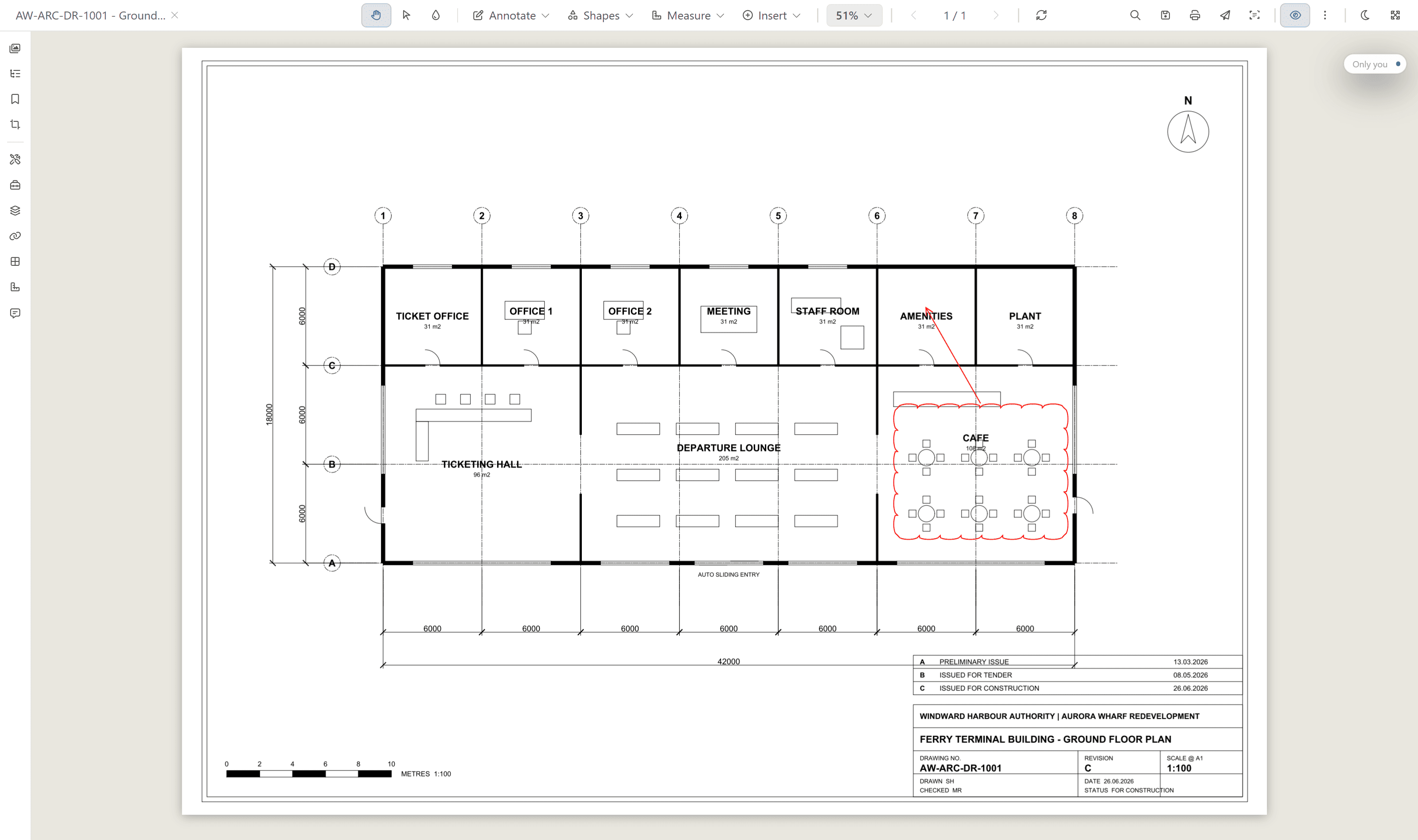
Search the words printed inside a scanned drawing.
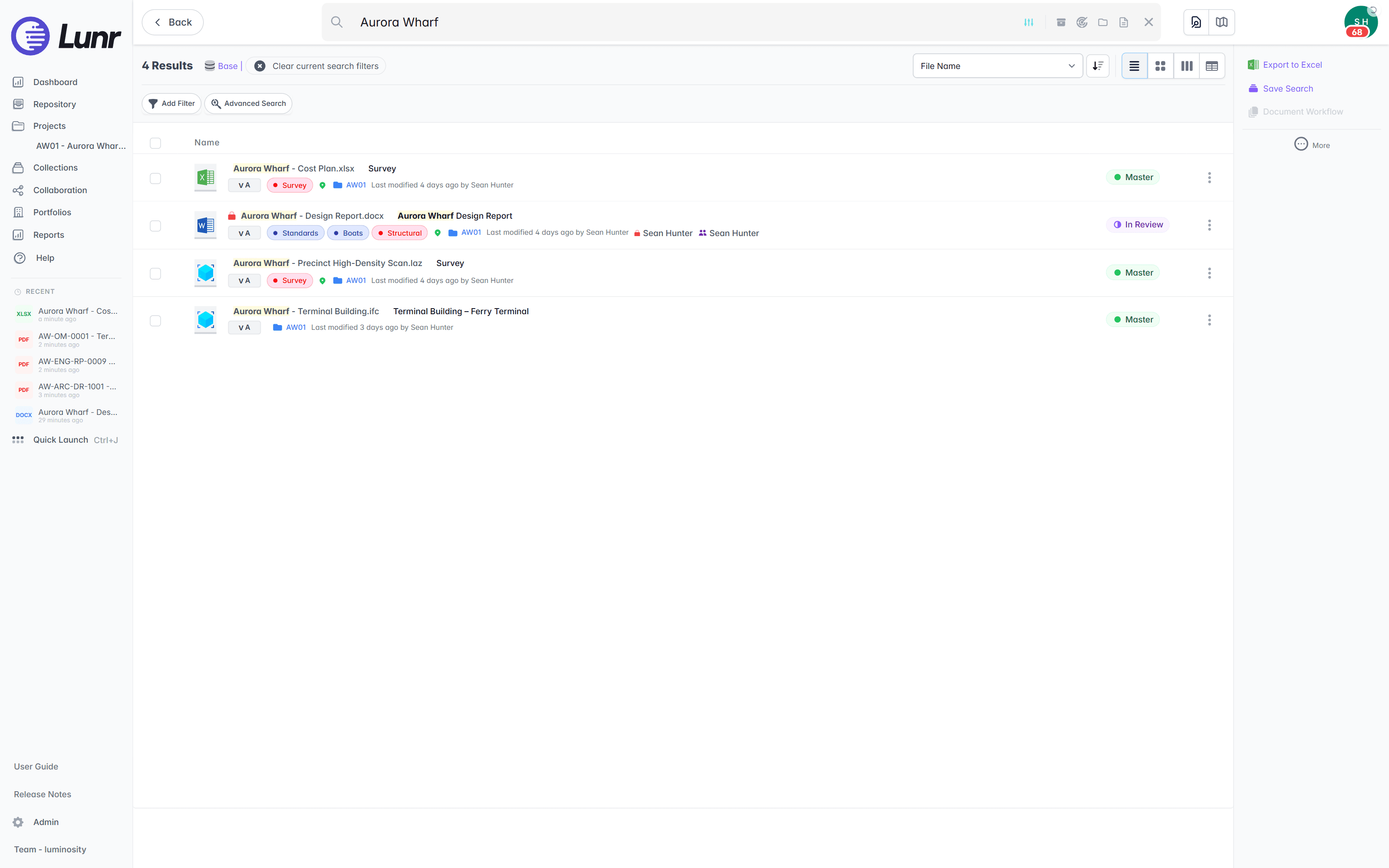
SharePoint search reads Office text and file names, so the content of a scanned drawing is invisible to it. XRAY runs OCR and full-text search across every drawing, scans included. Search a valve tag, a title-block reference, or a note, and Lunr returns the sheet whether it was saved this morning or scanned from a 1994 archive.
- OCR and AI full-text search across every DWG, DGN, RVT, PDF, and scanned image.
- Find a tag, a reference, or a note printed inside the drawing, not just the file name.
- Deep XRAY re-scans a dense sheet tile by tile, so nothing on the drawing is missed.
- Filter results by metadata, tags, and revision to narrow a large set fast.
OCR · AI full-text search · deep XRAY tile re-scan · metadata and tag filters
Issue drawings on the record, with an audit trail behind them.
A document library has no formal way to issue a drawing set and track receipt. Lunr issues transmittals that track themselves, validates each handover package against a manifest so a missing as-constructed drawing is caught on upload, and keeps a full audit trail behind every approval, revision, and change.
- Issue tracked transmittals, and run change requests that hold, forward, and close.
- Validate each handover package against a manifest, and read title-block tags into metadata.
- Move drawings through configurable review and approval workflows.
- Keep a full audit trail on every controlled drawing, ready for compliance.
transmittals · manifest validation · change requests · configurable workflows · full audit trail
See handover and transmittals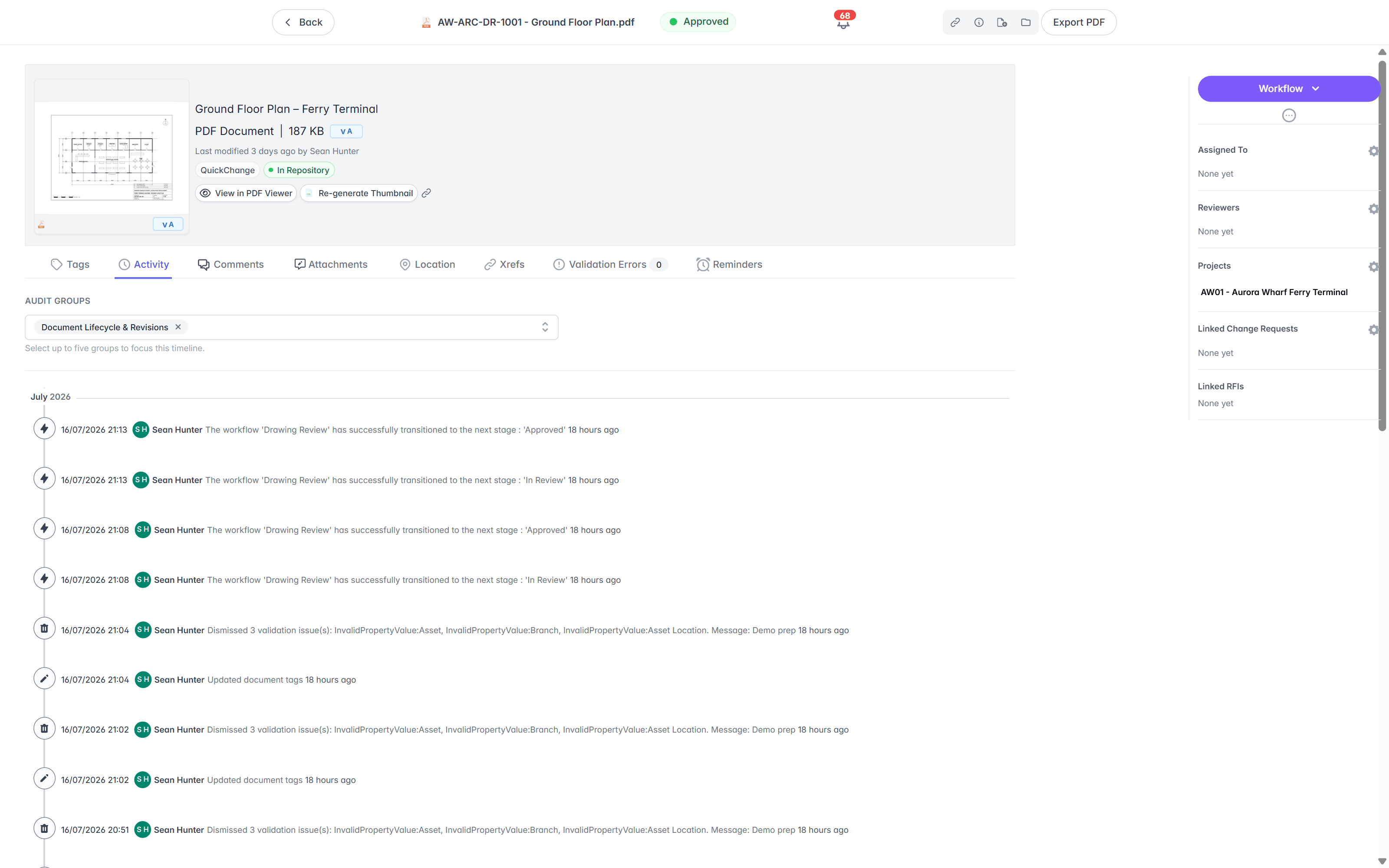
Move your drawings across, keep SharePoint for the rest.
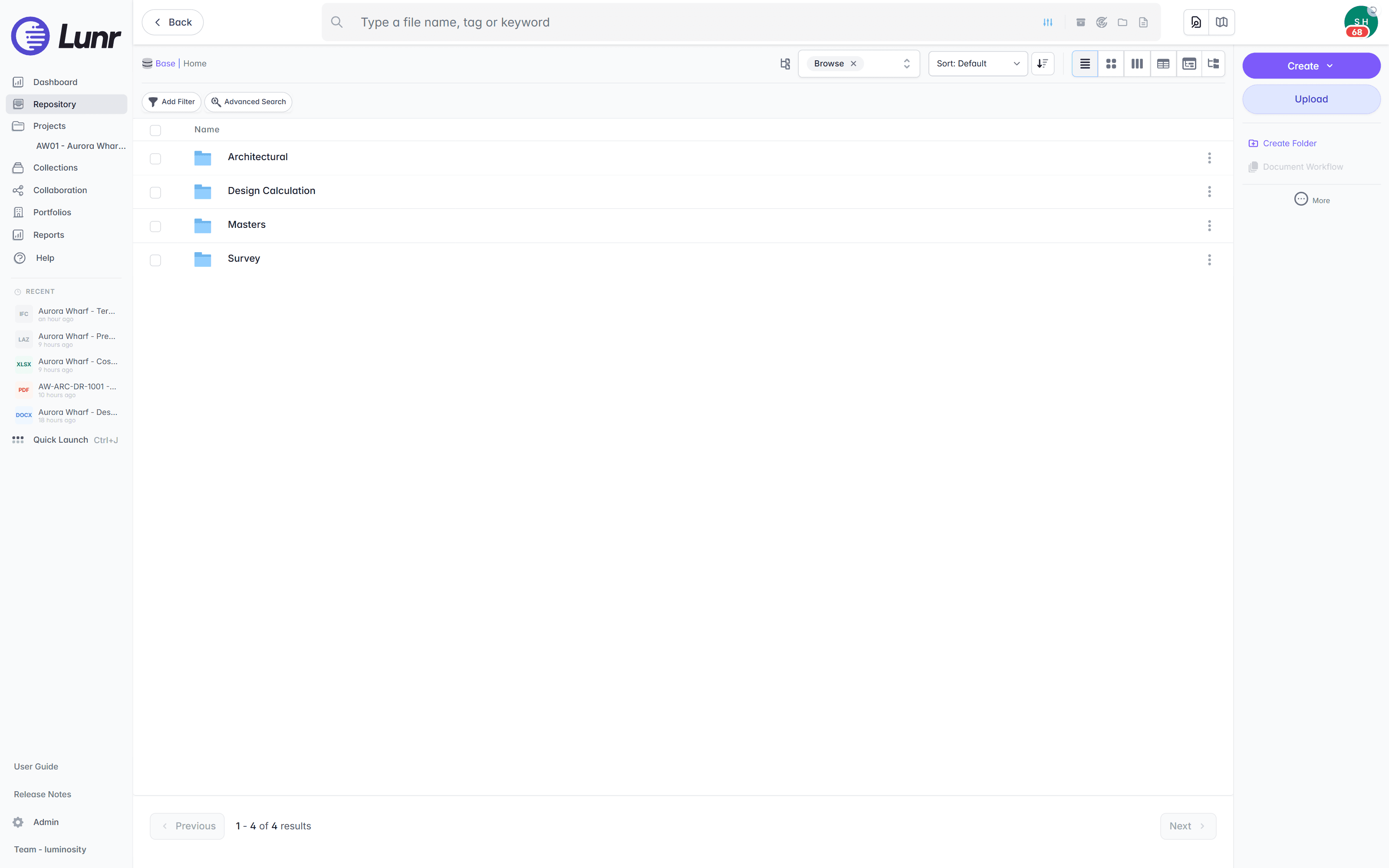
You do not have to rebuild anything or clear SharePoint out. Import the drawings, keep the folders your team knows, and connect the Office documents so they carry on where they are. The drawing record moves to Lunr, and the general documents stay put.
- 01Import in bulk
Point Lunr at your SharePoint export, and it reads the title-block tags from each sheet into metadata, so drawing number, revision, and discipline become fields you can filter on.
- 02Keep your folders
Your existing folder structure comes across, so people find drawings where they expect, while the register gives the controlled view on top.
- 03Keep Office documents working
The OneDrive connector brings Word and Excel documents in from Microsoft 365, so day-to-day Office collaboration carries on unchanged.
- 04Keep SharePoint for the rest
Run SharePoint for general documents and Lunr for the drawing record, side by side. Nothing forces an all-or-nothing move.
See the OneDrive connector and the rest of the CAD, GIS, and facilities connectors on the connectors page.
Teams have already made this move.
Universities, utilities, energy companies, and government departments run their drawing record on Lunr, from project delivery through the operating life of the asset.
documents under management on Lunr. Proof the drawing record holds up at owner-and-portfolio scale.
“Lunr is a simple solution that provides the flexibility to develop the system to our needs. Lunr is simple to use, and minimal training is required.”
Questions teams ask about SharePoint and engineering drawings.
What SharePoint can and cannot do for a drawing set, and what it takes to move the drawings across while keeping Office where it is.
- Can SharePoint manage CAD drawings?
- SharePoint stores CAD files and versions each one, so it can hold DWG, DGN, and RVT as documents. What it does not do is treat a drawing set as a controlled record. It has no drawing register, it cannot open a CAD file in the browser, and its search cannot read the text drawn inside a scanned sheet. For a handful of drawings that is fine. For an engineering record that has to show the current revision of every sheet, teams move the drawings onto a purpose-built system and keep SharePoint for general documents.
- What breaks first when you manage engineering drawings in SharePoint?
- Revision control, usually. SharePoint versions a single file, but an engineering drawing set needs the current issue of every sheet, the superseded copies kept and marked, and a register that shows the whole set at a glance. File names and folders start standing in for that, the current revision becomes a guess, and superseded sheets stay in circulation. Search is the next wall, because the words inside a scanned drawing are invisible to SharePoint search.
- Can you keep SharePoint alongside Lunr?
- Yes, and it is the common setup. Keep SharePoint for general documents, policies, and Office collaboration, and put the drawing record on Lunr. The OneDrive connector brings Word and Excel documents in from Microsoft 365, so nothing about your day-to-day Office work has to change. Lunr holds the controlled drawing record, and SharePoint keeps doing what it is good at.
- How does moving drawings off SharePoint work, and how long does it take?
- Import your drawings in bulk. Lunr reads the title-block tags from each sheet into metadata, so drawing number, revision, and discipline become searchable fields without retyping. Your existing folder structure comes across, and automatic numbering applies your register format as records land. Timing depends on the volume and how clean the title blocks are, but reading the title blocks is the step that removes most of the manual work. The University of Canberra moved more than 20,000 documents off SharePoint this way.
- What happens to our Office documents?
- They keep working. The OneDrive connector links Lunr to Microsoft 365, so Word and Excel documents stay where your team edits them, and you reference them from the drawing record without moving them. You run Office collaboration and a controlled drawing record together, rather than choosing one over the other.
- How do existing folder structures map across?
- Your folders come across as they are. Lunr imports the structure so people still find drawings where they expect, and the drawing register sits on top as the controlled view, with the current revision, status, and metadata for the whole set. You get the register without asking anyone to relearn where things live.
- Do you need AutoCAD or a CAD licence to view drawings?
- No. The whole team opens DWG, DGN, and PDF drawings in the browser through the Rift viewer, with layers, measurement, and markup. Models open in Foundry and point clouds in Nimbus. A CAD seat is only needed to author drawings, not to review them, which is the opposite of opening a CAD file straight from SharePoint.
Keep SharePoint. Give the drawings a home.
Book a walkthrough with someone who knows what a transmittal and an as-constructed drawing are, and watch Lunr run against a set of your own.
10M+ documents under management · Hosted in Australia and the US · SAML · Full audit trail · Export anytime
- entity
- Lunr Labs Pty Ltd
- location
- Melbourne AU
- workspace
- documents.lunr.app
- rev
- 2026